Reading a code instead of making one
Every other tool on this site turns information into a QR code. This one goes the other way: give it an image and it tells you exactly what the code contains, in plain text, before anything opens.
That matters for two quite different reasons. The everyday one is that you cannot point a camera at your own screen, so a code sent in a message needs a different route. The more important one is safety: seeing the contents first is the single habit that defeats almost every QR scam.
Four ways to scan
- Choose a file. Any image containing a code, including screenshots.
- Drag and drop an image straight onto the box.
- Paste. Copy an image anywhere, then press Ctrl+V or Cmd+V on this page.
- Use the camera. Point it at a printed code. Your browser will ask permission first, and the video never leaves your device.
What it tells you
The scanner does not just dump the raw string. It identifies what kind of code it is, because the contents mean different things depending on type:
| Type | What you will see |
|---|---|
| Website link | The full URL, plus a button to open it once you have read it |
| WiFi network | The network name, the password in plain text, and the security type |
| Contact card | The full vCard, name, phone, email and company |
| Calendar event | The event title, start, end and location |
| Phone or SMS | The number, and any prefilled message |
| Plain text | The message exactly as encoded |
The WiFi row is worth pausing on. A WiFi QR code carries the password as readable text, which surprises people. Scanning one here shows you exactly how exposed that password is to anyone who photographs the code.
Read before you tap. A link is only shown as a clickable button after you have seen the full address. If the domain is not what you expected, close the page. That one check defeats nearly every QR based scam, and it is the reason this tool never opens anything automatically.
Checking a code you did not create
Codes arriving by message, email or post deserve more suspicion than one printed on a menu, because you did not choose the source. Things worth looking at once the contents appear:
- Does the domain match the business? A parking payment should not open a domain you have never heard of.
- Lookalike spelling. A zero for an o, an extra hyphen, an unusual ending.
- A shortener you cannot inspect. Legitimate businesses use them, but a shortener plus urgency is a poor combination.
- An immediate request for payment or a login from something you did not initiate.
Our guide on spotting a malicious QR code goes through how these scams actually work, with a test we ran on two visually identical codes pointing at very different places.
When a scan fails
If nothing is detected, it is almost always the image rather than the code:
- Too small. This is the usual cause. We measured it: the same code decoded down to 92 pixels and failed at 55. Ask for the original image rather than a forwarded copy, since messaging apps shrink pictures.
- Too much around it. A full page screenshot leaves the code tiny. Crop to the code and try again.
- A corner is cropped or covered. The three large squares are position markers. Damage there stops detection completely rather than degrading gracefully, as our damage test shows.
- A screenshot of a screenshot. Each round trip loses resolution.
Interestingly, compression is rarely the problem. In the same tests, a code survived being saved as JPEG at quality 5. Size is what breaks scanning, not file size.
Privacy
Images are decoded in your browser. Nothing is uploaded, no file reaches a server, and camera video is processed frame by frame on your own device and discarded. Close the tab and there is nothing left anywhere.
That is the point of doing it this way. A WiFi password or a contact card read through an online scanner that uploads the image has been handed to a stranger. Here it has not left the machine you are sitting at.
Scanning a code that is already in a picture
Way 2: Use your phone's own photo tools
What to look for
Many recent phones can recognise a QR code inside a saved picture, either when you open it in the photo viewer or through a search by image feature. Where the option sits, and what it is called, depends on the phone and its software version.
What we could not check
We did not test specific phones for this article, so we will not name buttons we have not pressed. Our guide to scanning a QR code from a screenshot covers the iPhone and Android routes in more detail. If your phone does not offer anything, Way 1 works on any phone with a browser.
Way 4: Fix the picture, then try again
What we tested
We took one QR code and spoiled it eight ways: three sizes of small picture, no blank margin, a tiny code inside a screenshot, low contrast, inverted colours, and a blurred noisy photo. Then we applied a quick fix and tried again. Every picture held the same code, and we read each one with two software decoders, OpenCV and jsQR. These are software tests, not phones, and they do not always agree with each other.
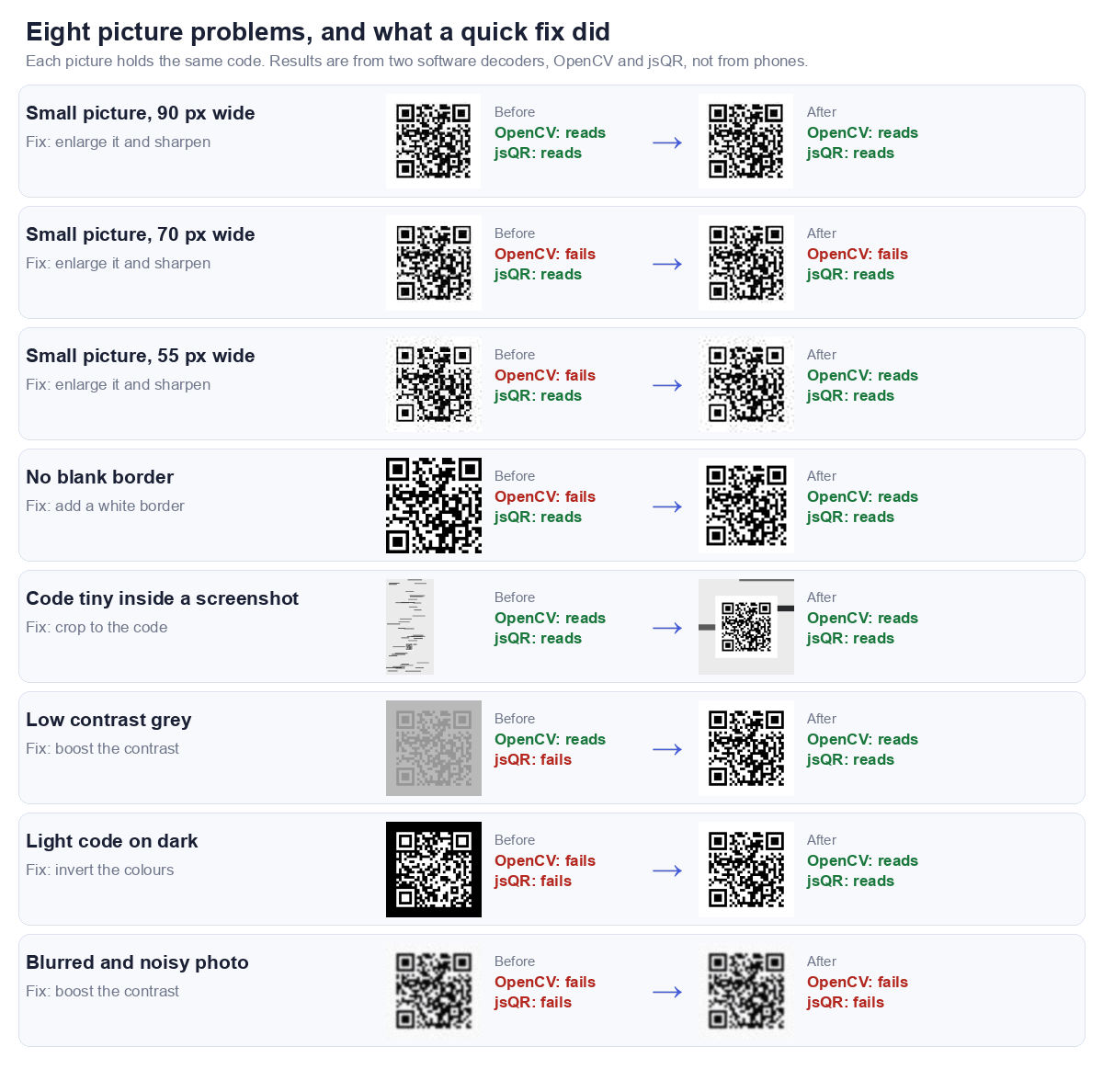
| Problem | Fix | Before (OpenCV / jsQR) | After (OpenCV / jsQR) |
|---|---|---|---|
| Small picture, 90 px wide | Enlarge it and sharpen | Reads / Reads | Reads / Reads |
| Small picture, 70 px wide | Enlarge it and sharpen | Fails / Reads | Fails / Reads |
| Small picture, 55 px wide | Enlarge it and sharpen | Fails / Reads | Reads / Reads |
| No blank border | Add a white border | Fails / Reads | Reads / Reads |
| Code tiny inside a screenshot | Crop to the code | Reads / Reads | Reads / Reads |
| Low contrast grey | Boost the contrast | Reads / Fails | Reads / Reads |
| Light code on dark | Invert the colours | Fails / Fails | Reads / Reads |
| Blurred and noisy photo | Boost the contrast | Fails / Fails | Fails / Fails |
What helped
- Inverting a light on dark code. Both decoders failed it, and both read it once the colours were flipped. It was the clearest result of the test.
- Adding a white border. The code with no blank margin failed in OpenCV and read after we added one. A QR code needs a quiet margin around it, and cropped screenshots often lose it.
- Boosting contrast on a grey code. jsQR failed it and read it after the stretch.
- Enlarging a very small picture. At 55 pixels wide OpenCV failed and then read after we enlarged and sharpened it.
What did not help
- The blurred, noisy photo. Both decoders failed it and both still failed after a contrast boost. Once the squares have smeared together, editing cannot bring them back. Ask for the original instead of a copy.
- Enlarging the 70 pixel picture. OpenCV failed it before and after. Enlarging helps only when there is still enough detail to enlarge.
- Cropping the code out of a large screenshot. Both decoders read it either way, because this code was a reasonable size inside the screenshot. Cropping matters when the code is tiny, and it never hurts.
The two decoders disagreed, so try a second scanner
jsQR read all three small pictures, including the 55 pixel one, and OpenCV did not read two of them. In our earlier size test a similar code stopped reading at 55 pixels, so the line depends on the decoder and the exact image. If one scanner says nothing was found, try another before you give up.
Which way to pick
A simple order to try them in
| Situation | Try |
|---|---|
| The code came in a message and you want to check it first | Way 1 |
| The picture is in your phone's photos | Way 2, then Way 1 |
| The picture is on a computer screen | Way 3, or Way 1 on the computer |
| Nothing was found | Way 4, then a second scanner |
Why pictures fail to scan in the first place
The usual causes are size, blur, a missing margin and low contrast, and we measured each of them in why won't this QR code scan. Messaging apps also shrink pictures, so ask for the original file if you can.
Scanning from a screenshot on your phone
iPhone
The quickest way: Photos
- Open the screenshot in Photos.
- Press and hold on the QR code itself.
- A banner or menu appears with the link. Tap it.
This uses Live Text, which is on by default on recent iOS versions. If nothing happens, check Settings, General, Language and Region, Live Text is enabled.
If that fails: Live Text button
Open the image in Photos and look for the Live Text icon, a small square with lines inside it, usually bottom right. Tap it, then tap the code.
Third option: the code scanner
iOS has a dedicated Code Scanner in Control Centre. Add it under Settings, Control Centre. It scans from the camera rather than from an image, so for a screenshot on the same device you would need a second screen. Useful to know it exists, not the answer here.
Android
Google Lens, the reliable route
- Open the screenshot in Google Photos.
- Tap the Lens icon at the bottom.
- Lens reads the code and offers the link.
Lens is on essentially every modern Android device, either standalone or inside Google Photos and the Google app.
Straight from the screenshot notification
On many Android versions, taking a screenshot of a QR code shows a preview with a Lens or Scan shortcut right there. Tap it before the preview disappears.
Samsung devices
Samsung's Gallery has its own Bixby Vision or Lens option. Open the image, tap the three dot menu, and look for a scan or vision entry. Samsung also has a QR scanner in the quick settings panel.
What we found about image quality
We wanted to know what actually breaks a screenshot scan, so we generated a code, then shrank and compressed it and tried to decode each version.
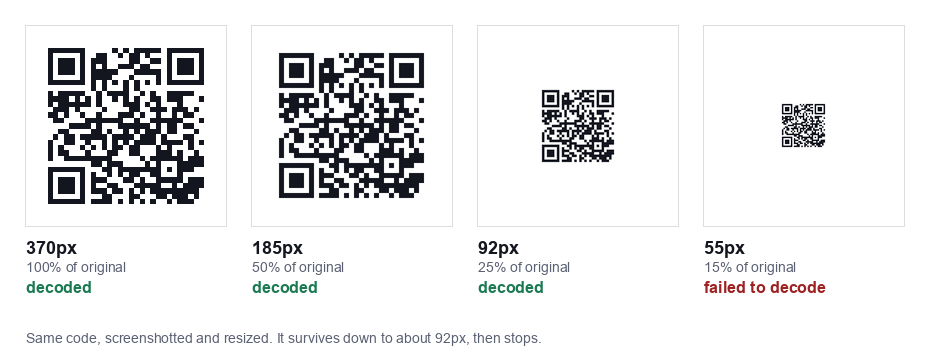
Size is what matters. A 29 x 29 module code decoded fine at 370px, 277px, 185px, 129px and 92px. At 55px it stopped. That works out at roughly three pixels per module before detection breaks down.
Compression barely matters. We saved the same code as JPEG at qualities from 95 down to 5, taking the file from 35KB to 5KB. Every single one still decoded. That surprised us, JPEG artefacts are usually the first thing blamed when a code will not scan.
The practical rule: if a screenshot of a QR code will not scan, it is almost certainly too small, not too compressed. Ask for the image again at full size, or screenshot the code on its own rather than as part of a full page.
One caveat worth stating: this was software decoding of clean digital images. A phone camera pointed at a screen has to deal with reflections, focus and screen refresh, and is less forgiving than the decoder we used.
Scanning a code off another screen
If you are using a second device to scan a screen, three things make it work:
- Turn the screen brightness up. This helps more than anything else.
- Hold the phone square to the screen, not at an angle. Angles create reflections.
- Back off a little. Phone cameras struggle to focus very close. Fifteen to twenty centimetres usually beats five.
If it still fails, try zooming the image on the source screen so the code is physically larger.
Common questions
Does it work on a phone?
Yes, and the camera option is the natural one there. On a phone your own camera app may already read printed codes, so this is most useful for codes already saved in your photos.
Can it read a damaged or partly covered code?
Sometimes. QR codes carry error correction that recovers a limited amount of missing data, and the scanner will use it. But damage to a corner marker is usually fatal regardless of how much of the rest survives.
Can it read barcodes too?
No, QR codes only. Traditional barcodes use a different format entirely.
Why not open the link straight away?
Because that would defeat the purpose. The value here is seeing the destination before committing to it.
Related tools
Step by step guides: four ways to scan a QR code from an image, and scanning a screenshot on iPhone and Android.
Need to make a code rather than read one? Start with URL, WiFi, vCard or text, or generate a whole list at once with the bulk generator. If you are scanning something from a screenshot, our guide on scanning from screenshots covers the platform specific shortcuts too.
If a code refuses to read anywhere, it is worth knowing what actually breaks a scan. We measured it: tilt survived 60 degrees and rotation made no difference at all, but blur of four tenths of one module was fatal. The numbers are in why QR codes fail to scan, and you can run those same four tests against your own code with our stress test tool.