Hotels have a structural advantage over most businesses using QR codes: a guest journey with clearly defined moments. Arrival, settling into the room, needing something, and leaving. A code that matches one of those moments gets used. A code that sits somewhere generic does not.
This guide covers which codes are worth deploying, where they belong, and the operational details that decide whether they save your front desk time or generate more calls.
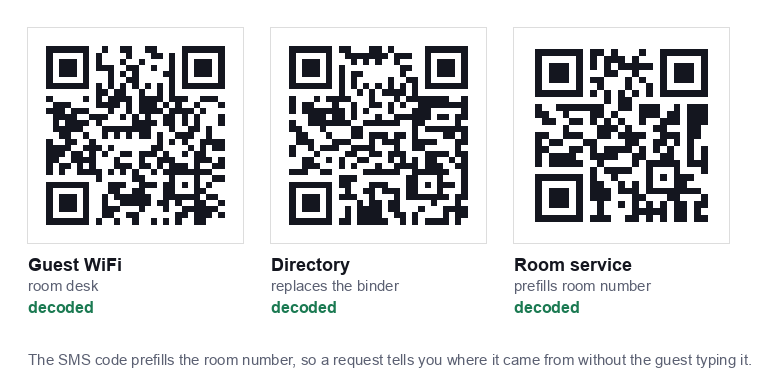
The codes worth deploying
1. Guest WiFi, the highest value code in the building
Front desks spend a remarkable amount of time repeating a WiFi password. A code in the room and at reception removes almost all of it, and guests appreciate it immediately because connectivity is the first thing they want.
Generate it with our WiFi QR code generator, pointed at your guest network only, never the network carrying your property management system, door locks or payment terminals.
One caveat specific to hotels: if your guest WiFi uses a captive portal, a sign in page requiring a room number or terms acceptance, a QR code cannot bypass it. The code will connect the device to the network, then the portal appears. That is acceptable, but print a line explaining the extra step or you will get calls saying the code is broken.
2. Digital directory, replacing the in room binder
The printed compendium in the drawer is expensive to produce, out of date within a month, and rarely opened. A code on the desk opening a mobile page can carry breakfast times, restaurant hours, spa booking, checkout procedure, local recommendations and the housekeeping schedule.
Use a static URL code pointing at a page on your own domain. Then you update the page whenever anything changes, and every code in every room stays correct without reprinting.
3. Room service QR code
This is the code guests actually use, and the one most hotels get wrong by pointing it at a generic ordering page that then asks which room they are in.
There are four ways to take the request and they are not equivalent. We built each one and measured it:
| How the request arrives | Grid | Smallest usable print | Knows the room? |
|---|---|---|---|
| Text message, room number prefilled | 25 x 25 | 13 mm | Yes |
| Ordering page, one link per room | 29 x 29 | 15 mm | Yes |
| WhatsApp, room number prefilled | 33 x 33 | 16 mm | Yes |
| Ordering page, one link for the hotel | 25 x 25 | 13 mm | No |
The text message version wins on the numbers. It makes the smallest code of the three that identify the room, it needs no app and no ordering system behind it, and the request arrives in writing, so there is no misheard room number at two in the morning. The draft opens with the room already in it and the guest types what they want. Our SMS generator builds it, or the booking generator if you want the wording framed as a request.
The last row is the one to avoid. A single link for the whole hotel makes the same small code, but the guest then has to tell you which room they are in, and that extra step is where people give up and phone down instead.
One thing you do not need to worry about. We checked whether room numbers of different lengths change the code size across a building, since that would leave you printing two sizes. They do not. Rooms 9, 99, 412 and 1201 all produce the same 29 by 29 grid, because the range is too small to cross a version step. Pad the numbers or do not, the printed size is the same. That is not true of larger batches, which we covered in bulk QR codes for a print run.
4. Feedback and reviews
Place this at checkout, not in the room. A code at the front desk or on the folio, once the stay has gone well, converts far better than one sitting on a desk for three days. The wording rules matter here, our guide to review QR codes covers what you may and may not ask for.
5. Contactless check in
A code in the lobby opening your check in flow reduces queues at peak arrival times. Treat it strictly as an alternative to the desk, never a replacement, see the accessibility section below.
Where each code belongs
| Code | Placement | Print size |
|---|---|---|
| Guest WiFi | Room desk card and reception counter | 4 to 5cm |
| Digital directory | Room desk, bedside, back of door | 4 to 5cm |
| Room service | Bedside table, desk | 4cm |
| Feedback | Front desk, checkout folio | 3 to 4cm |
| Check in | Lobby stand, entrance | 15 to 20cm |
| Restaurant menu | Table talkers | 4 to 5cm |
Lobby codes are read from a distance and need to be far larger than most properties print them. The rule is roughly one tenth of the scanning distance, our sizing guide has the full table.
Accessibility is not optional
Hotels serve a wider demographic than almost any other business, and QR only systems exclude people:
- Guests without a smartphone: skewing older.
- International guests with no data allowance who cannot load a page before connecting to WiFi, which is precisely why the WiFi code must work offline.
- Visually impaired guests: for whom a code is invisible unless the destination page is built properly for screen readers.
- Guests with dexterity difficulties who find holding a phone steady at the right distance genuinely hard.
Every QR code in a hotel needs a physical alternative. The WiFi password printed as text under the code. A staffed desk alongside contactless check in. A printed directory available on request. The code should be the fast path, never the only path.
Printing and durability in a hotel environment
- Use acrylic holders or laminated cards: not loose stickers. Stickers peel, and a peelable code is a code someone can cover with their own, a genuine security concern covered in our guide on QR code safety.
- Matte finish only. Glossy cards reflect room lighting directly into the camera. It explains most cases of a code that "works in the day and not at night".
- Check during turndown or housekeeping. Add a card check to the room checklist, damaged corner markers break scanning entirely.
- Keep spares at housekeeping. A drawer of replacement cards costs almost nothing and prevents a damaged card sitting in a room for weeks.
Operational mistakes to avoid
- Changing the WiFi password without reprinting. The password lives inside the image, so a change invalidates every card in the building. Build reprinting into the process, and use holders you can slide new cards into.
- Pointing directory codes at a PDF. Pinching and zooming a PDF on a phone is unpleasant enough that guests will call the desk instead.
- Unlabelled codes. A bare code gets ignored. "Scan for WiFi" and "Scan for hotel information" are different codes and must say so.
- Depending on a subscription service. If a dynamic code provider lapses, every card in every room dies at once. Static codes pointing at your own domain avoid this entirely.
- Forgetting the restaurant. Hotel restaurants are often run separately and end up with an inconsistent system, the same rules from our café and restaurant guide apply there.
A sensible rollout order
- Guest WiFi first. Highest value, lowest effort, immediate reduction in front desk interruptions. Check it with a handset that has never joined the guest network, since an already connected one proves nothing.
- Digital directory second. Build the page before printing anything, and make sure it works well on a phone.
- Test in a handful of rooms for two weeks. Ask housekeeping and the front desk what guests actually say.
- Then roll out property wide: and add feedback and service codes once the basics are proven.
Start with the code that pays for itself immediately: the WiFi QR code generator is free, requires no account, and your network password never leaves the browser.
For cafes and restaurants
The four codes worth having
1. WiFi access, the highest value, lowest effort
Staff in a busy café repeat the WiFi password dozens of times a shift. A small code on each table or at the till ends that entirely, and unlike a menu code, customers universally appreciate it.
Set this up on a guest network, not your main one. Your till system, back office computer and card terminal should not share a network with every customer's phone. Nearly all modern routers can broadcast a separate guest SSID with client isolation.
Generate it with our WiFi QR code generator, then print the password as text underneath the code as a fallback.
2. Google review link, the highest commercial return
This is the one most venues underuse. A code at the till or on the receipt pointing directly at your Google review form removes the friction that stops satisfied customers from leaving a review.
Get your review link from your Google Business Profile, then generate a static URL QR code for it. Place it where a customer stands after a good experience, at the till when paying, or on the receipt tray. Not on the table at the start of the meal.
Do not incentivise reviews with discounts. Google's policies prohibit it and it can affect your listing.
3. Menu, useful, but only done properly
Menu codes earned a poor reputation because of how they were implemented, not because the idea is bad. The mistakes were consistent: linking to a PDF, removing physical menus entirely, and hiding the code somewhere awkward.
If you do it, do it like this:
- Link to a mobile web page, never a PDF. Pinching and zooming a PDF on a phone is genuinely unpleasant and customers will simply ask for a physical menu.
- Keep physical menus available. The code should be a convenience, not a replacement. Older customers and anyone with a flat battery still need paper.
- Make the page load fast. Customers on mobile data in a busy room will not wait for a heavy page.
The genuine benefit is price changes without reprinting, which for a venue changing specials weekly is substantial.
4. Short instructions, the quiet win
A text QR code needs no internet at all, which makes it useful for things a customer might scan before connecting: opening hours, allergen contact procedure, the WiFi terms, or table service instructions.
Placement and sizing for a venue
| Code | Where | Print size |
|---|---|---|
| WiFi | Table card, till, or framed near the counter | 4 to 5cm |
| Google review | Receipt, till card, payment tray | 3 to 4cm |
| Menu | Table talker, front of menu | 4 to 5cm |
| Window display | Shop front glass | 15 to 20cm |
The underlying rule: a code should be at least one tenth as wide as the distance it is scanned from. Our guide to QR code sizing for print covers the full range.
Static or dynamic for a venue?
For WiFi, static is the only sensible option, a redirect cannot work for a customer who is not yet online.
For a menu, static pointing at a page you control is usually best: you change the menu page, the code stays the same. That gives you editable content without a monthly subscription and without depending on a third party service that could shut down and kill every table card at once.
For review links and social profiles, static again, those addresses do not change.
The full tradeoff is in our guide on static versus dynamic QR codes.
For holiday rentals
Step 3: Test it properly (most hosts skip this)
There is exactly one valid way to test a WiFi QR code, and it is not scanning it with your own phone.
The correct test: take a second phone that has never joined the network, or on your own phone, go to WiFi settings and choose “Forget this network”, then turn WiFi off, scan the code, and see if it joins. A phone that already knows the network will connect regardless of whether your code is correct.
This single step catches the majority of “my QR code doesn't work” problems before a guest ever sees them.
Step 4: Set up a guest network first
This is the part that separates a well run listing from a risky one. If you print a QR code for your main network, every guest who has ever stayed has your primary WiFi password, and their devices sit on the same network as anything else you have connected: cameras, smart locks, a personal laptop, network storage.
Almost every modern router can broadcast a separate guest network. It provides internet access but isolates devices from your main network. Set one up, give it its own password, and generate the QR code for that network instead.
Practically, this means:
- Log into your router admin page (usually 192.168.0.1 or 192.168.1.1).
- Find “Guest Network” or “Guest WiFi” in the wireless settings.
- Enable it, name it something obvious like “Apartment Guest”, and set a password.
- Enable client isolation if the option exists.
- Generate your QR code for this network only.
If you ever need to change the password between guests, you change it on the guest network alone, your own devices stay connected.
What to do when you change the password
The password is stored inside the image itself, so a new password means a new code. There is no way to update an existing printed code. That has two consequences worth planning for:
- Do not laminate rigidly if you rotate passwords. Use a frame or a card holder you can slide a new print into.
- Keep the source file so regenerating takes thirty seconds.
If you change passwords between every guest for security reasons, build the reprint into your turnover checklist alongside the linen.